Teltonika FMB010 setup and GPS platform connection
Manual for connecting the Teltonika FMB010 GPS tracker to the application
Choose APN settings for your GPS device and SIM (optional)
setparam 3003:admin;3004:adminadmin admin setparam 2004:s1.floomligps.com;2005:11000;112:3;113:1;2025:0Only the first SMS starts with 2 spaces. The second starts with admin admin, without leading spaces. Send each command as a separate SMS, without quotation marks. Field 2001 is your SIM APN; keep server s1.floomligps.com and port 11000 unchanged.
The device will send back an SMS confirming the configuration.
The device should be connected at the time of configuration.
SIM card should be active and have internet data plan.
SIM card should have PIN code disabled.
How to add and connect a device?
Add the device IMEI in Floomli GPS, then configure the SIM APN and server s1.floomligps.com with TCP port 11000 on your tracker. Confirm the SIM has active mobile data.

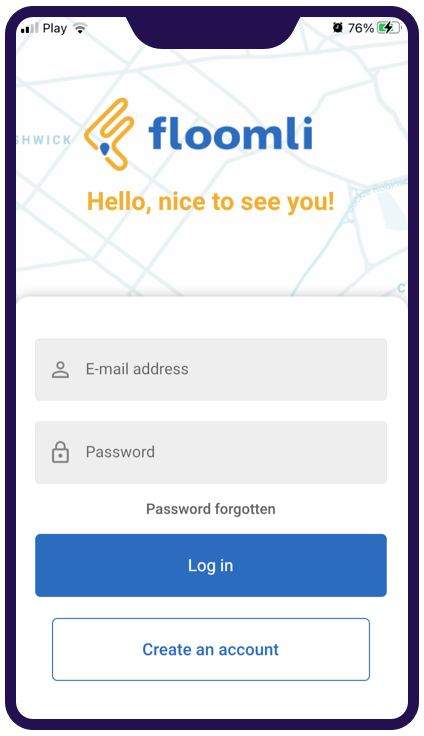
Your account
Create an account to access the mobile app.

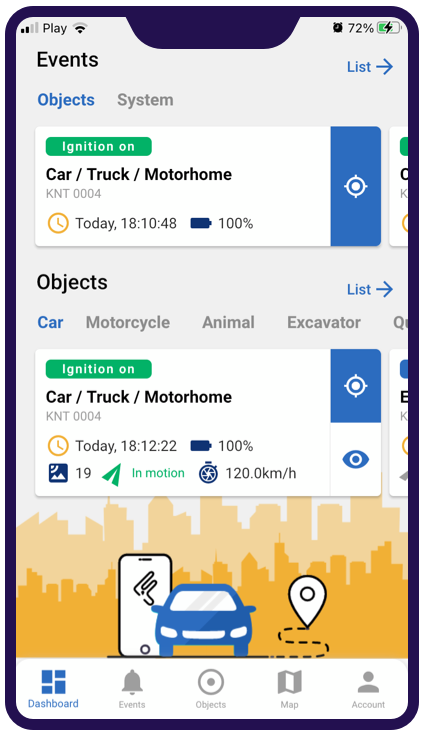
Add a vehicle in the application

Configure your device
Configure your GPS device according to the manufacturer's instructions by setting the above APN, Server, and Port values.
Teltonika FMB010 connection troubleshooting
Does Floomli GPS support Teltonika devices?
Yes. Floomli GPS supports Teltonika GPS trackers using the Teltonika AVL (TCP) protocol with IMEI-based authentication.
Which Teltonika protocol is supported by Floomli GPS?
Floomli GPS supports Teltonika devices using the Teltonika AVL (TCP) protocol.
How do I connect a Teltonika tracker to Floomli GPS?
To connect a Teltonika tracker to Floomli GPS, configure the APN, set the server address and port, and authorize the device using its IMEI.
Why is my Teltonika GPS tracker offline?
Check that the SIM is active, has mobile data, has its PIN disabled and uses the correct APN. Check device power, GSM coverage, server address and TCP port. If the tracker was previously used with another platform, reconfigure its server.
How do I verify the tracker sends data?
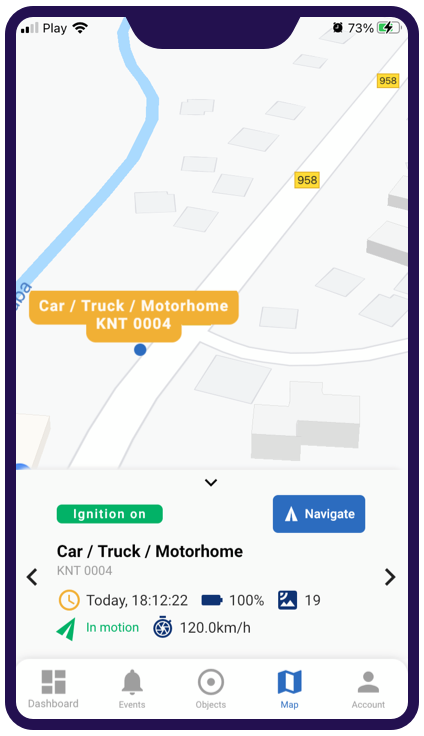
Add the correct IMEI in Floomli GPS, check that the tracker is powered and connected to a mobile network, and look for a recent online status and location. If no data arrives, review the APN and device server settings.
One vehicle can use free live tracking. History and advanced features require a paid subscription. See current plans and prices.
Personal & Fleet Tracking Pricing